 GatoScan
Save a scan as JPG instead of PDF on iPhone
Quick answer
According to Apple's iPhone User Guide, Apple's Preview app scans a paper to a PDF and can then export that PDF as a JPEG. GatoScan's Export sheet turns a scan into JPGs directly, one image per page, and sends them to Photos, Files, Mail or Print: scanning is free, and every export needs GatoScan Pro.
With Apple's Preview app
Preview is a free app from Apple for working with PDFs and images. Its App Store listing says it needs iOS 26 or later on iPhone, or iPadOS 26 or later on iPad. Apple's iPhone User Guide for iOS 27 describes two parts: scan the paper to a PDF, then export the PDF as a JPEG. The steps below follow that guide.
Open the Preview app and tap Scan Documents.
Point the camera so the page appears on the screen. Apple's guide says the iPhone captures the page automatically. To capture it yourself, tap Auto (the label changes to Manual), then tap the Shutter button.
Scan any further pages the same way. To crop, rotate or adjust the coloring, tap the thumbnails. Then tap the button that finishes the scan. Apple's guide says the scan becomes a PDF.
Open the PDF, tap the button next to the filename, then tap Export.
Select JPEG as the file format. For JPEG, drag the Size slider left for a smaller file or right for higher quality. When you export a PDF to an image format, you can also enter a Resolution, in pixels per inch or pixels per cm.
Tap the button to go on, choose a location for the file, then tap Save.
In these steps, Preview saves the exported file to a location you choose. Apple's guide doesn't say whether a PDF with several pages becomes one JPEG per page, or only one image. If you scanned in the Notes app instead, Apple's guide says a Notes scan is saved as a PDF in the note.
With GatoScan: JPG straight from the scan
In GatoScan, JPG is a choice in the Export sheet, next to PDF. Each page becomes its own image. The screenshots were taken in the iOS 27.2 Simulator with a made-up sample lease, not a real paper.
-
Scan the paper with GatoScan, which uses Apple's document camera, and save it. Then open the document.
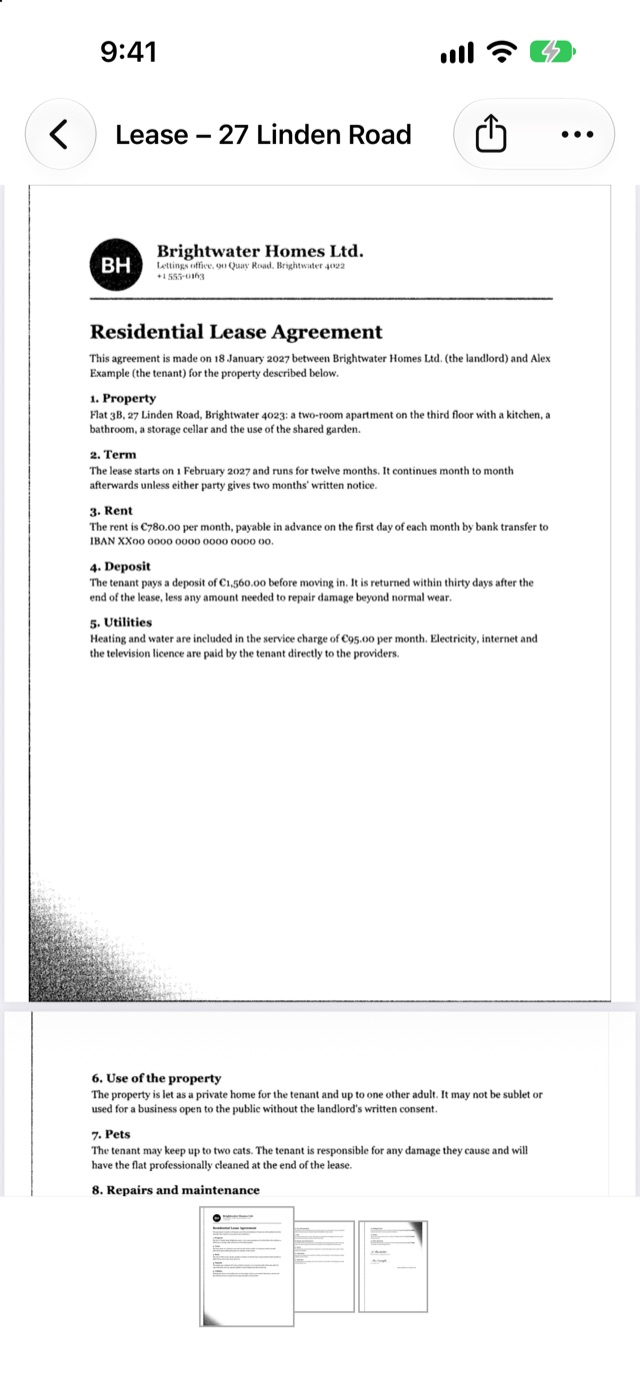
The Export button is the share icon at the top right. -
Needs GatoScan Pro: tap Export. Without Pro, GatoScan shows the GatoScan Pro offer first; once you buy, the Export sheet opens on its own.
-
Tap JPG. The sheet starts on PDF and High each time it opens, so check this every time. Then pick a size. High keeps each page at full size. Medium and Small cap how large each image can be and compress it more; no size makes a page larger. The File size line shows the total for all the images, and the buttons below wait until the images are ready.
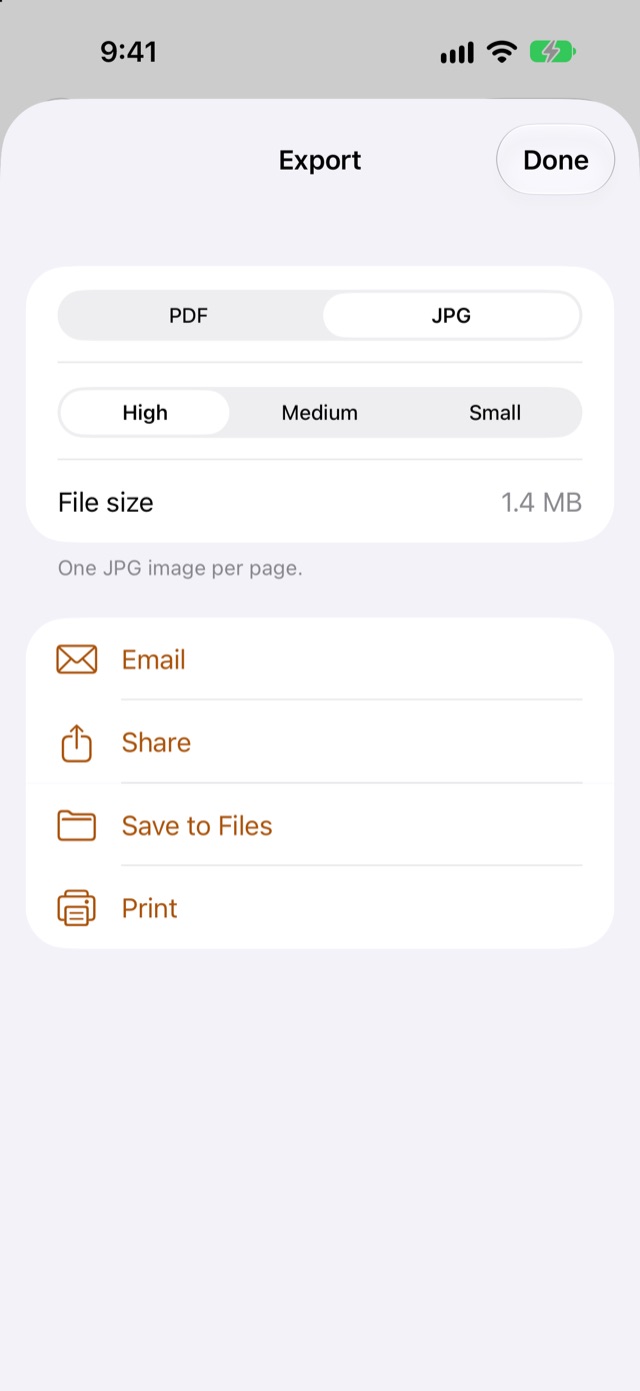
For a document with more than one page, the sheet usually notes: One JPG image per page. -
To put the pages in Photos, tap Share. The iOS share sheet opens with all the images. For our three-page sample it showed "3 Images" and a "Save 3 Images" button. Tap that button.
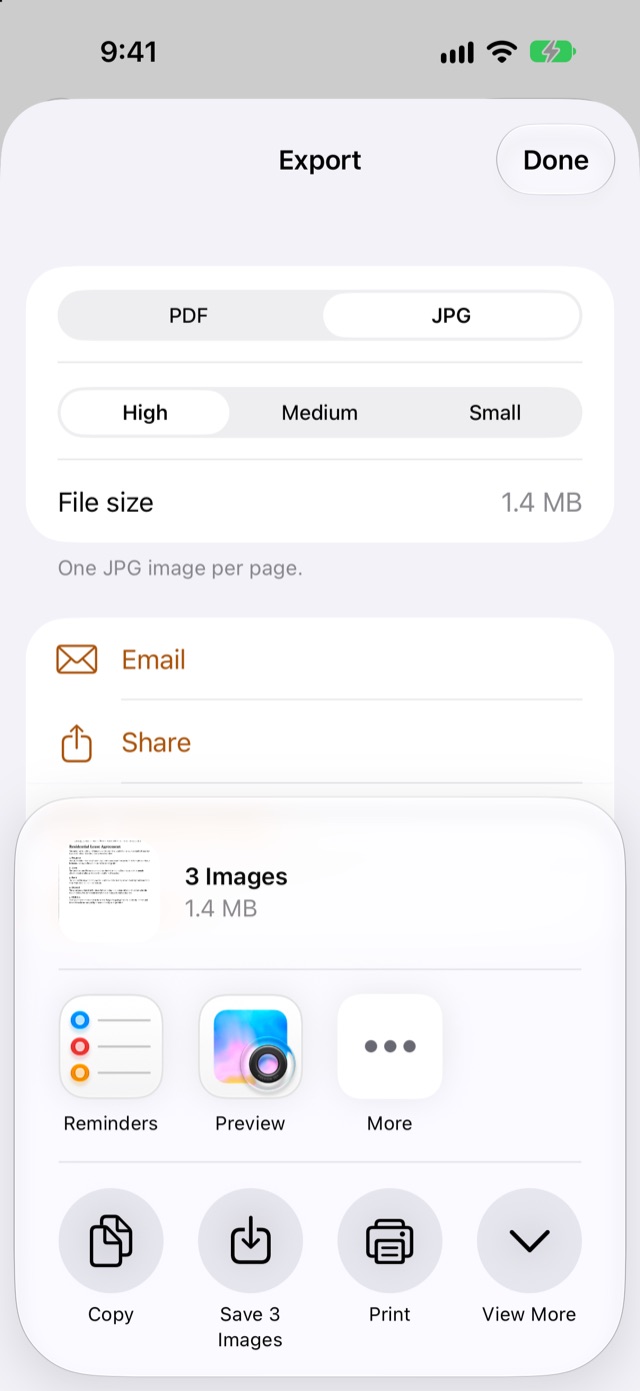
Share hands every page image to the iOS share sheet at once. The first time, iOS asks whether GatoScan may add to your photo library, with GatoScan's line "GatoScan saves the images you export to your photo library." Tap Allow. In our Simulator test, the three pages then appeared in Photos.
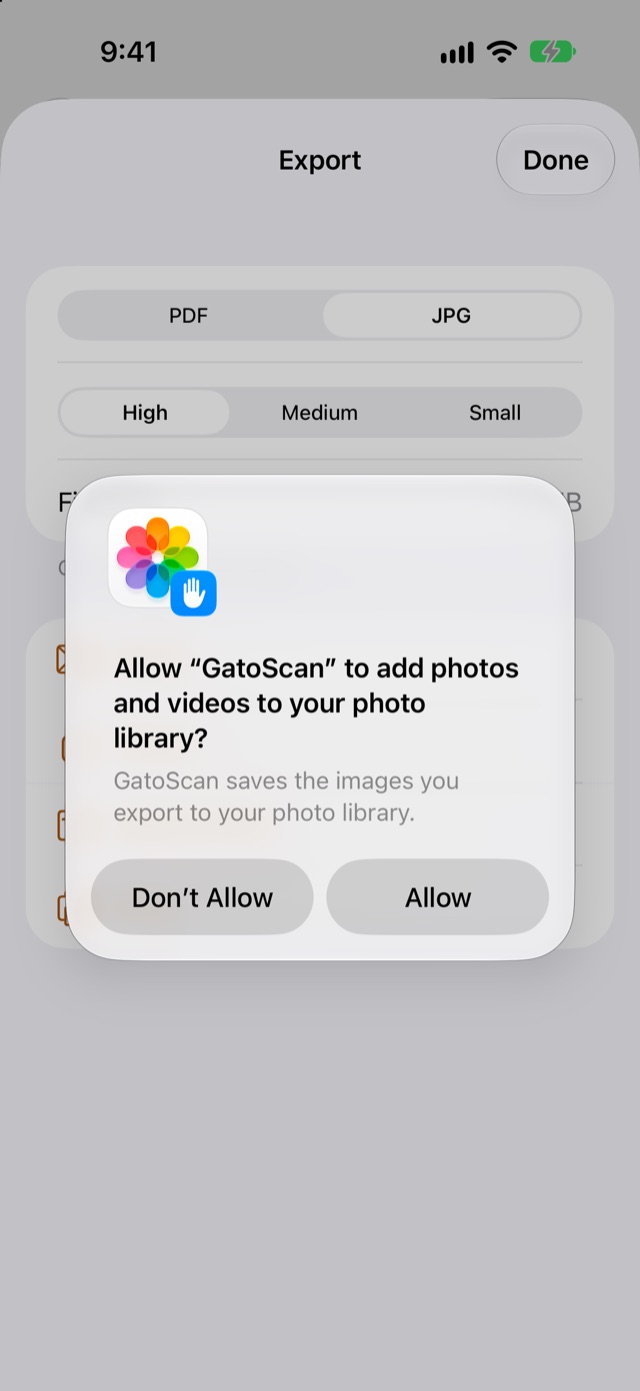
The photo library prompt appears the first time you save to Photos. -
Or send the images somewhere else from the same sheet. Save to Files opens the iOS folder picker and saves copies of all the images. Email opens Mail with every image attached and the document title as the subject; if Mail isn't set up, the share sheet opens instead, and if the images are large, Email first asks "Compress before emailing?" Print sends the images to the iOS print screen as a photo print job.
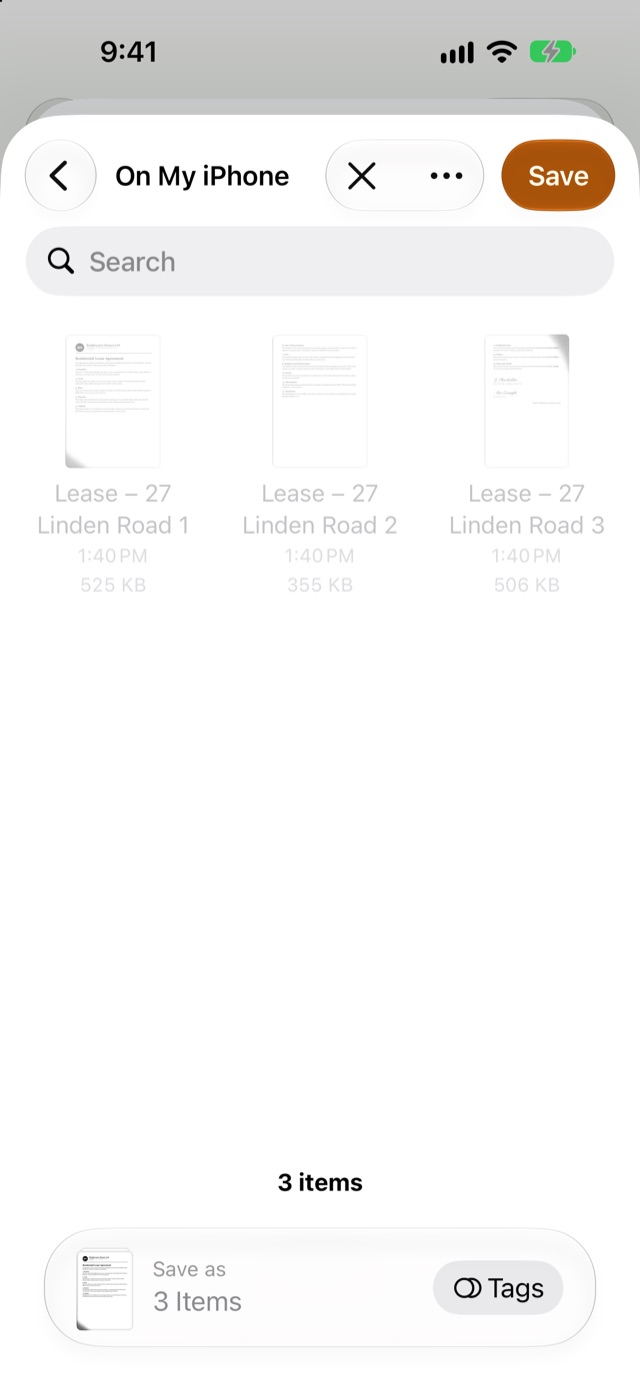
Save to Files lets you pick the folder for all the pages at once. The files shown come from an earlier save in the same test; their sizes are for the sample pages.
Tip: right after you save a scan, the Share PDF button on the "Purrfect scan!" sheet or the "Scan saved" banner also leads here. With GatoScan Pro, it opens this same Export sheet: switch it to JPG there. Without Pro, it shows the GatoScan Pro offer first.
Each image shows the page as GatoScan shows it: cropped, straightened and with the filter you picked when you reviewed the scan. The files are named after the document. A one-page document gives one file with the document's title; our three-page sample gave "Lease – 27 Linden Road 1.jpg" to "Lease – 27 Linden Road 3.jpg".
JPG or PDF?
Pick JPG when you need a picture of each page: to keep the pages in Photos, or for a form that asks for an image. You get one JPG per page.
Pick PDF when the pages belong together. A PDF keeps every page in one file, with a page size for printing. GatoScan's PDF also carries the text it recognized, so the words can be searched. A JPG has no searchable text and no page size: how big it prints depends on the app that prints it.
Preview and GatoScan side by side
| Preview | GatoScan | |
|---|---|---|
| How you get a JPG | Scan to a PDF, then export the PDF as JPEG, per Apple's guide | Pick JPG in the Export sheet |
| Scan with several pages | Not stated in Apple's guide | One JPG per page |
| Size options | A Size slider, and a Resolution setting for a PDF, per Apple's guide | High, Medium or Small |
| Where the file goes | A location you choose, per Apple's guide | Email, Share (including Photos), Save to Files or Print |
| Needs | iOS 26 or later, or iPadOS 26 or later on iPad (App Store listing) | iOS 17 or later, iPhone or iPad |
| Cost | Free app from Apple, per the App Store listing | Scanning free; every export, JPG included, needs GatoScan Pro |
Questions
Can the Notes app save a scan as a JPG?
Apple's iPhone User Guide says a Notes scan is saved as a PDF in the note, and its Notes page doesn't mention JPG. Apple's guide for Preview describes exporting a PDF as a JPEG.
How do I get a scan into the Photos app?
In GatoScan, open the document, tap Export, pick JPG, tap Share, then tap the share sheet's button that saves the images (for our three-page sample, "Save 3 Images"). The first time, iOS asks for permission to add to your photo library. Export needs GatoScan Pro. Apple's page on exporting from Preview doesn't mention Photos.
What happens to a scan with several pages?
GatoScan makes one JPG per page, numbered in page order after the document's title. Apple's guide doesn't say whether Preview turns a PDF with several pages into one JPEG per page, or only one image.
Should I use JPG or PDF for an upload form?
Use what the form asks for. If it wants an image, JPG gives you one per page. If it takes a PDF and you have several pages, a PDF keeps them in one file. In GatoScan, the Medium and Small sizes compress the images more than High.
Does GatoScan put a watermark on the JPGs?
No. Exports never contain a watermark, in JPG or PDF. Exporting needs GatoScan Pro.
Related guides
Sources
- Apple, iPhone User Guide (iOS 27): Scan text and documents in Preview on iPhone, checked .
- Apple, iPhone User Guide (iOS 27): Export or compress PDFs and images in Preview on iPhone, checked .
- Apple, App Store: Preview, checked .
- Apple, iPhone User Guide (iOS 27): Scan text and documents in Notes using the iPhone camera, checked .
Found a mistake or a step that no longer works? Tell us.