 GatoScan
A4 or Letter PDF from an iPhone scan: set by your region
Quick answer
The Notes and Preview pages of Apple's iPhone User Guide that we read describe scanning a paper to a PDF, but none of them mentions choosing A4 or Letter. GatoScan has no page-size setting: every PDF page is US Letter if your region is the US, Canada, Mexico or another Letter region listed below, and A4 everywhere else; scanning is free, but every export needs GatoScan Pro.
What Apple's guide says about Notes and Preview
Apple's iPhone User Guide for iOS 27 describes two ways to turn a paper into a PDF. For Notes, the guide says: "The document is saved as a PDF in the note." For Preview, it says: "Preview combines the pages into a single PDF that you can save and edit." Preview is an Apple app; its App Store page lists it as free, for iOS 26 or later.
We read the guide's Notes and Preview pages on scanning, editing, exporting and printing (checked 17 November 2026). They don't say what page size a scan gets, and none of them mentions A4, Letter or choosing a paper size. None of the 979 topic titles in the guide's table of contents is about page size or paper size either.
For a PDF, the export options Apple's guide lists for Preview are Create Linearized PDF (for fast web loading), Embed Text (to make the PDF searchable), and Optimize Images for Screen and Save Images as JPEG (both for a smaller file). Its other options are for image formats. None of them is a page size.
Preview's App Store listing says: "Markup your PDFs with Apple Pencil on iPad, resize them, or rotate them." Neither the listing nor the guide pages we read say how that resizing works or whether it changes the page size, so we can't tell you it gives an A4 or Letter page.
The guide pages also describe cropping a page, in Preview and, for scanned documents, in Notes, without linking it to a paper size.
GatoScan uses your region's size, and only that
GatoScan has no page-size setting. It puts every PDF page on US Letter (8.5 × 11 inches) or A4 (210 × 297 mm), according to the region set in Settings > General > Language & Region.
- US Letter: Belize, Canada, Chile, Colombia, Costa Rica, El Salvador, Guatemala, Mexico, Nicaragua, Panama, the Philippines, Puerto Rico, the United States and Venezuela.
- A4: every other region.
GatoScan goes by the region, not by the measurement system on the same settings screen. With the region set to the United States, you get Letter even if your units are metric.
If you need the other size, GatoScan doesn't do it. There is no switch or menu for the page size anywhere in the app, and the Export sheet has no page-size control.
GatoScan imports images only, not PDFs. Preview is ahead there: Apple's export steps start with "Open a PDF or image", so it works on a PDF you already have. To get an A4 or Letter PDF from GatoScan, scan the paper, or import a photo of it, in GatoScan.
With GatoScan: scan, then export a PDF
The screenshots below come from the iOS 27.2 Simulator. The document in them is a sample lease we generated: three pages, made-up names.
-
In GatoScan, tap Scan and capture each page with Apple's document camera. Save, then open the document from the Documents list.
-
The document screen shows the pages on the same paper as the PDF you'll export, and viewing is free. The region list above tells you which paper that is.
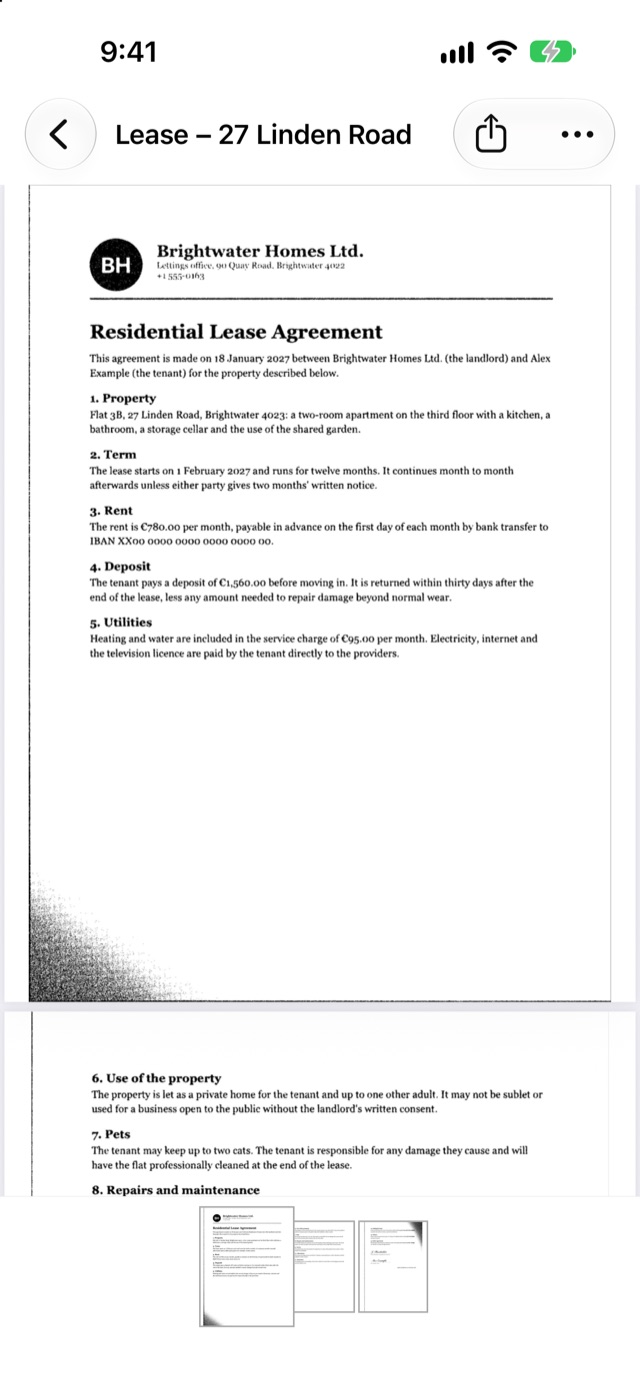
Sample pages in the iOS 27.2 Simulator, region set to the United States: page 1 on a Letter page, with white margins at the sides. 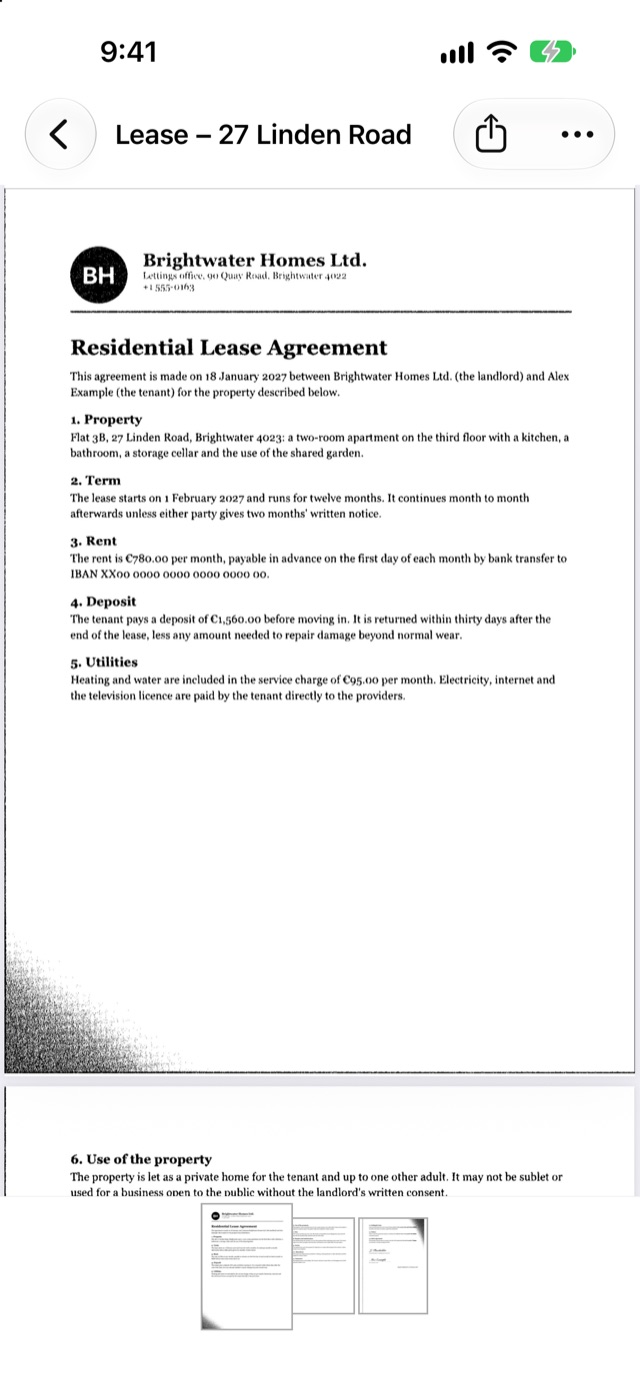
The same sample page in the Simulator, region set to the United Kingdom: on A4, the scan fills the width. -
Needs GatoScan Pro: tap Export, the share icon at the top right. Without Pro, the GatoScan Pro offer appears first; buy Pro there and the Export sheet opens on its own.
-
Keep the format on PDF; the sheet always opens on PDF and High. High, Medium and Small change the images' resolution and compression, not the page size. JPG gives one image per page and no A4 or Letter page: the page size applies to PDF only.
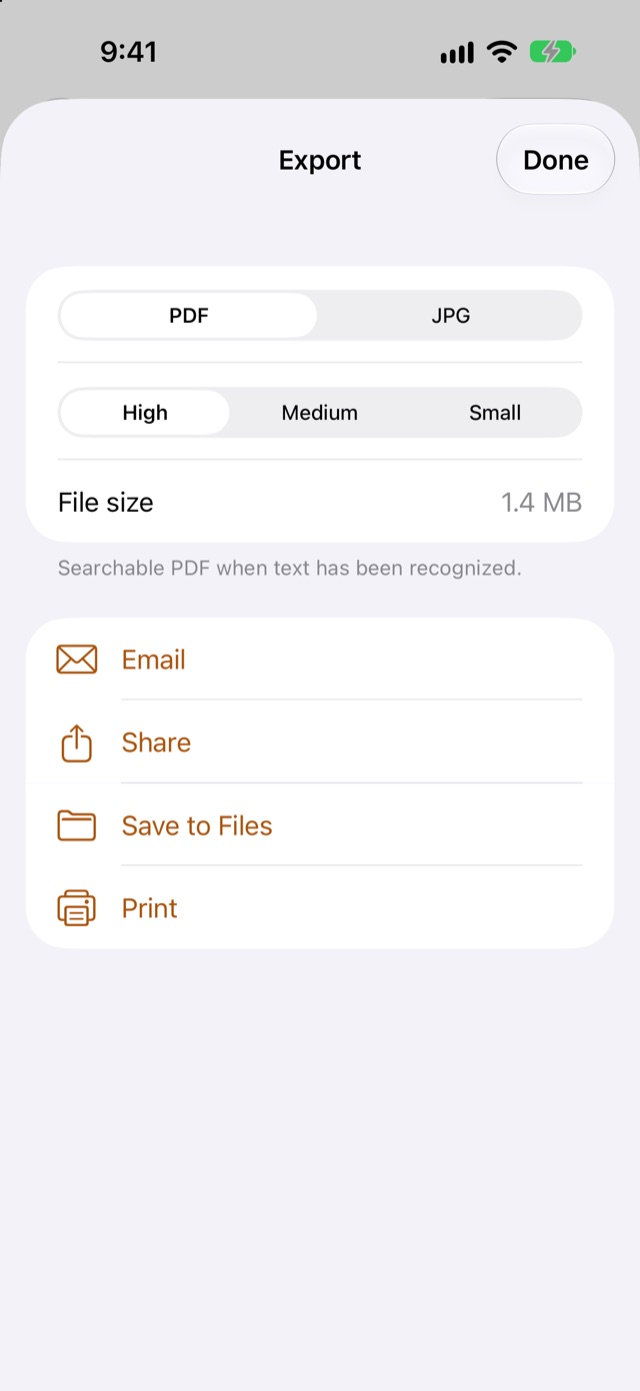
The Export sheet for the sample lease in the Simulator, region set to the United States: format, size, file size, and no page-size control. -
Tap Email, Share, Save to Files or Print. Every page of the PDF gets the same paper size. A page that is wider than it is tall goes on the same paper turned to landscape.
Print hands the same PDF to the iOS print screen. GatoScan sets no paper size there, and this guide doesn't cover what the print screen or your printer does with the file.
What we measured
We exported our three-page sample lease twice in the iOS 27.2 Simulator. With the region set to the United States, every page was 612 × 792 points (8.5 × 11 inches). With the United Kingdom, every page was 595.28 × 841.89 points (210 × 297 mm). At Small instead of High, the Letter pages stayed 612 × 792 points. The pages are generated samples, not a real paper.
The page dimensions are exact, but the scan isn't stretched to fill them. A scanned or imported page is fitted onto the paper, centred and keeping its proportions, not stretched or cropped. Where its shape differs from the paper's, the rest of the page is white.
- On A4: pages 1 and 2 of the lease filled the width, with white bands of about 1 mm at most. Page 3, a taller page, got side margins of about 11 mm.
- On Letter: the same pages got white side margins of about 8–9 mm (pages 1 and 2) and 19 mm (page 3).
The first two screenshots show the difference on page 1.
Apple's guide and GatoScan compared
| Notes and Preview, per the guide pages we read | GatoScan | |
|---|---|---|
| Scans a paper to a PDF | Yes | Yes, with Apple's document camera |
| Says what page size the PDF gets | No | Yes: A4 or US Letter, from your region |
| Lets you choose A4 or Letter | Not described | No: no page-size setting |
| How a scan sits on the page | Not described | Fitted, not stretched or cropped; white margins where the shapes differ |
| Opens a PDF you already have | Preview: yes, its export steps start from "Open a PDF or image" | No: imports images only |
| What you pay | Preview: nothing, per its App Store listing | Scanning costs nothing; every export needs GatoScan Pro |
Questions
How do I get an A4 or Letter PDF from an iPhone scan?
In GatoScan, export the scan as a PDF: its pages are your region's size, Letter in the 14 regions listed above and A4 everywhere else. Exporting needs GatoScan Pro. The Notes and Preview guide pages we read say a scan is saved as a PDF, but not at what page size.
Can I set a default page size for scans?
Not in GatoScan: it has no page-size setting and always uses your region's size. The Notes and Preview guide pages we read describe no page-size setting either.
Why does a GatoScan PDF have white margins?
A scanned page is fitted onto an A4 or Letter page without being stretched, so where its shape differs from the paper's, the rest is white. Pages 1 and 2 of our sample lease got side margins of about 8–9 mm on Letter, and bands of about 1 mm at most on A4.
Can pages in one scan come out at different sizes?
Not in GatoScan: every page of a document gets the same paper size, A4 or Letter. A page that is wider than it is tall gets that paper turned to landscape.
Related guides
Sources
- Apple, iPhone User Guide (iOS 27): Scan text and documents in Notes using the iPhone camera, checked .
- Apple, iPhone User Guide (iOS 27): Work with PDFs in Notes on iPhone, checked .
- Apple, iPhone User Guide (iOS 27): Export or print notes on iPhone, checked .
- Apple, iPhone User Guide (iOS 27): Get started with Preview on iPhone, checked .
- Apple, iPhone User Guide (iOS 27): Scan text and documents in Preview on iPhone, checked .
- Apple, iPhone User Guide (iOS 27): Export or compress PDFs and images in Preview on iPhone, checked .
- Apple, iPhone User Guide (iOS 27): Add, delete, rotate, move, or crop PDF pages in Preview on iPhone, checked .
- Apple, iPhone User Guide (iOS 27): Print PDFs or images in Preview on iPhone, checked .
- Apple, iPhone User Guide (iOS 27): table of contents, checked .
- Apple, iPhone User Guide (iOS 27): Change the language and region on iPhone, checked .
- Apple, App Store: Preview, checked .
Found a mistake or a step that no longer works? Tell us.