 GatoScan
Make a searchable PDF from a paper scan on iPhone
Quick answer
Apple's iPhone User Guide says its Preview app (free, iOS 26 or later, per the App Store listing) can scan a paper to a PDF, and that turning on "Embed Text" when you export a PDF will "run OCR on images and make the PDF searchable". GatoScan recognizes the text of every page by itself after you save a scan, lets you search all your scans by that text for free, and, once recognition has finished, puts the text into the PDFs it exports, though exporting, like copying the text, needs GatoScan Pro.
A scan begins as a picture of the page, with no text layer. Text recognition (OCR) is the step that reads the words. Apple's guide and GatoScan handle it in different ways; Apple's way comes first here.
Apple's way: scan in Preview, export with Embed Text
Preview comes from Apple, and the App Store lists it as free, for iOS 26 or later (iPadOS 26 or later on iPad). The steps below follow three pages of Apple's iPhone User Guide for iOS 27, on scanning, exporting and finding text. They are Apple's description; we didn't try them.
Open Preview and choose Scan Documents. Hold the iPhone over the paper so the page is on the screen.
Apple's guide says Preview takes the picture by itself; to take it yourself, tap Auto (it turns to Manual), then the Shutter button. Scan any further pages the same way; their thumbnails open crop, rotate and coloring controls.
End the scan with the button Apple's page shows only as an icon, and Preview creates a PDF of the pages. Apple's scanning page doesn't say where that PDF is kept, so you may need to find it before the next step.
Open the PDF, use the icon button beside the filename to reach Export, and pick PDF among the formats.
Switch on Embed Text, which Apple's guide sums up as: "Turn on to run OCR on images and make the PDF searchable."
Tap the next icon button, choose a location for the file, rename it in the Save As field if you want, and tap Save.
Later, to find a word, Apple's viewing page says to open the PDF in Preview, tap the search icon and type a word or phrase. Phrases are matched exactly; Whole Words and Match Case narrow the results.
Not covered by Apple's pages: the scanning page says nothing about OCR, recognized text or search, and the export page doesn't say whether Embed Text starts on or off, so check the switch before you save.
If the PDF already exists, use Preview: Apple's export steps start with "Open a PDF or image", while GatoScan imports images only and can't open a PDF. Preview is also free, per its App Store listing.
Where GatoScan helps
GatoScan recognizes the text of each page on its own once a scan is saved, so there is no option to remember, and searching your scans by their text is free. Exporting the PDF needs GatoScan Pro. The screenshots come from generated sample documents with made-up names, not from real paper; "How we checked" below lists which steps were run and which come from the app's code.
-
On the Documents screen, tap Scan (Scan document when you have no documents yet), capture the paper with Apple's document camera, and tap Save on the Review screen. Your first three saves each bring up a "Purrfect scan!" sheet. It reads "Reading text…" until every page has been recognized, then "Searchable text ready". Its Share PDF button (Pro) exports the document as it is at that moment, so wait for "Searchable text ready" before using it, or just tap Done.
-
Let text recognition run. It starts by itself after Save and goes through every page in the background, with no setting or button. Meanwhile the document's row in the Documents list reads "Recognizing text…" next to a spinner, and the open document shows "Recognizing text…" above a progress bar. Pages left unfinished when you closed the app are picked up at the next launch.
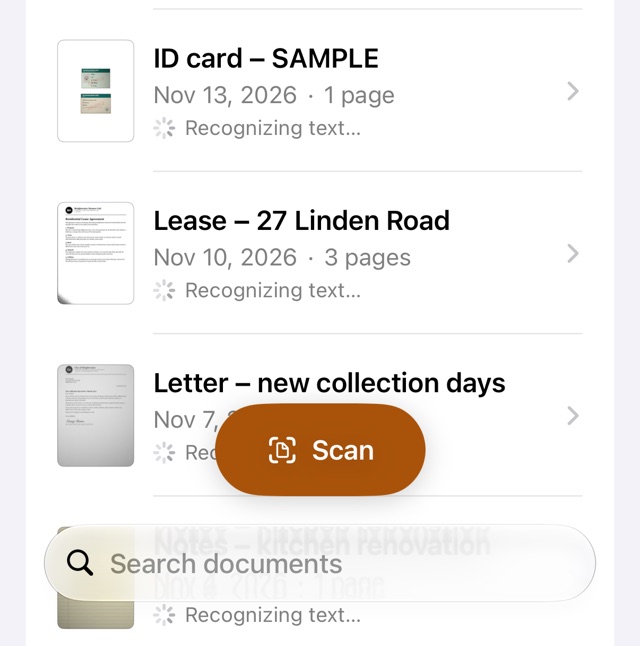
Sample documents in the Simulator just after loading, each still being read. -
Free: find a scan by what it says. Type a word into the Search documents field. GatoScan matches the document's title or the recognized text of any of its pages that have been read, whatever the upper or lower case and accents.
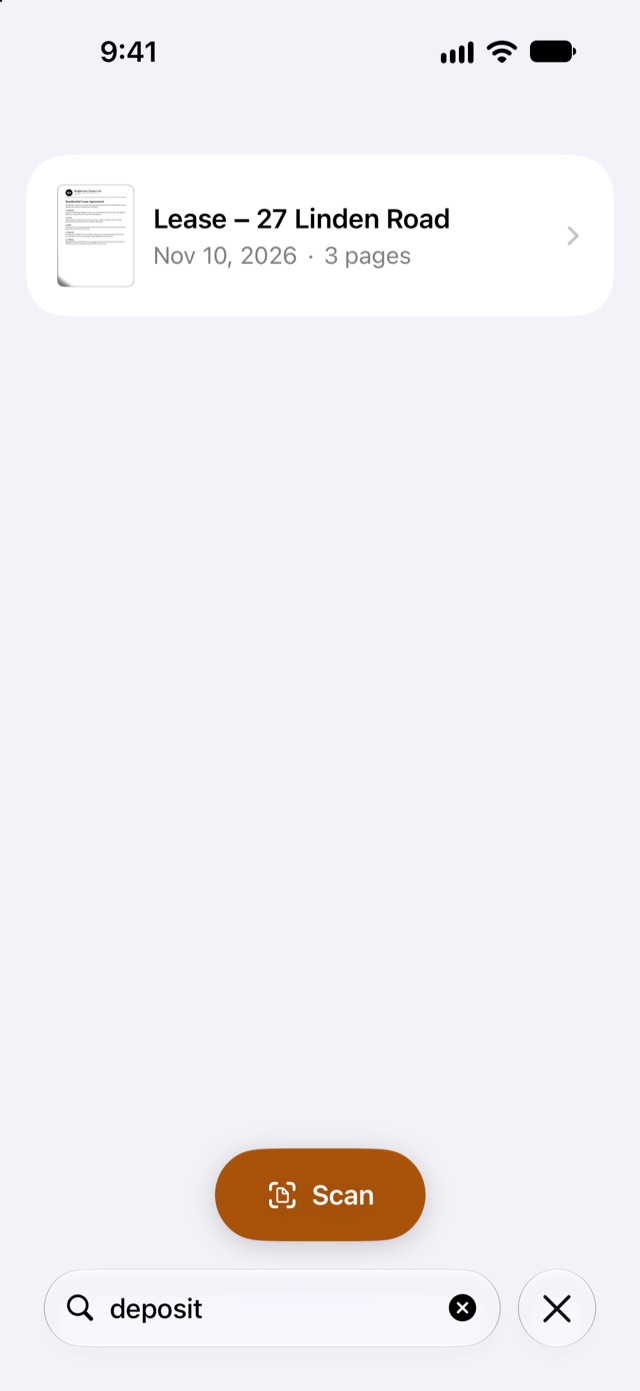
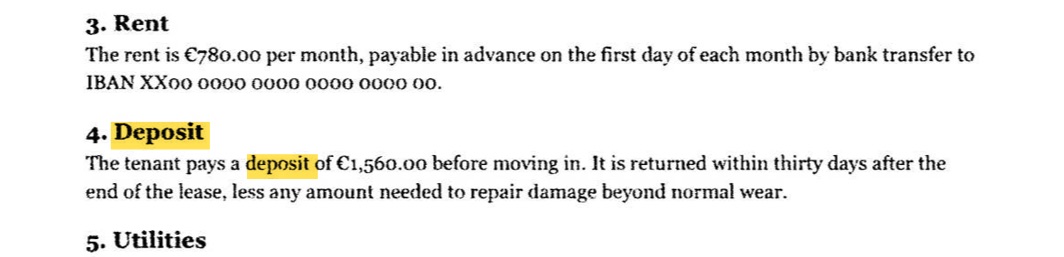
Searching the sample documents for "deposit": the word is printed in the lease, not in its title, and the lease is the one result. -
Needs GatoScan Pro: open the document and tap Export, the share icon at the top right. Without Pro, the GatoScan Pro offer comes up first; after you buy, the Export sheet opens without another tap.
-
The sheet opens on PDF and High. Keep PDF, then tap Email, Share, Save to Files or Print. Usually the line under the options reads "Searchable PDF when text has been recognized."; for a very large file at High or Medium, an email-size warning takes its place. The file takes the document's title as its name.
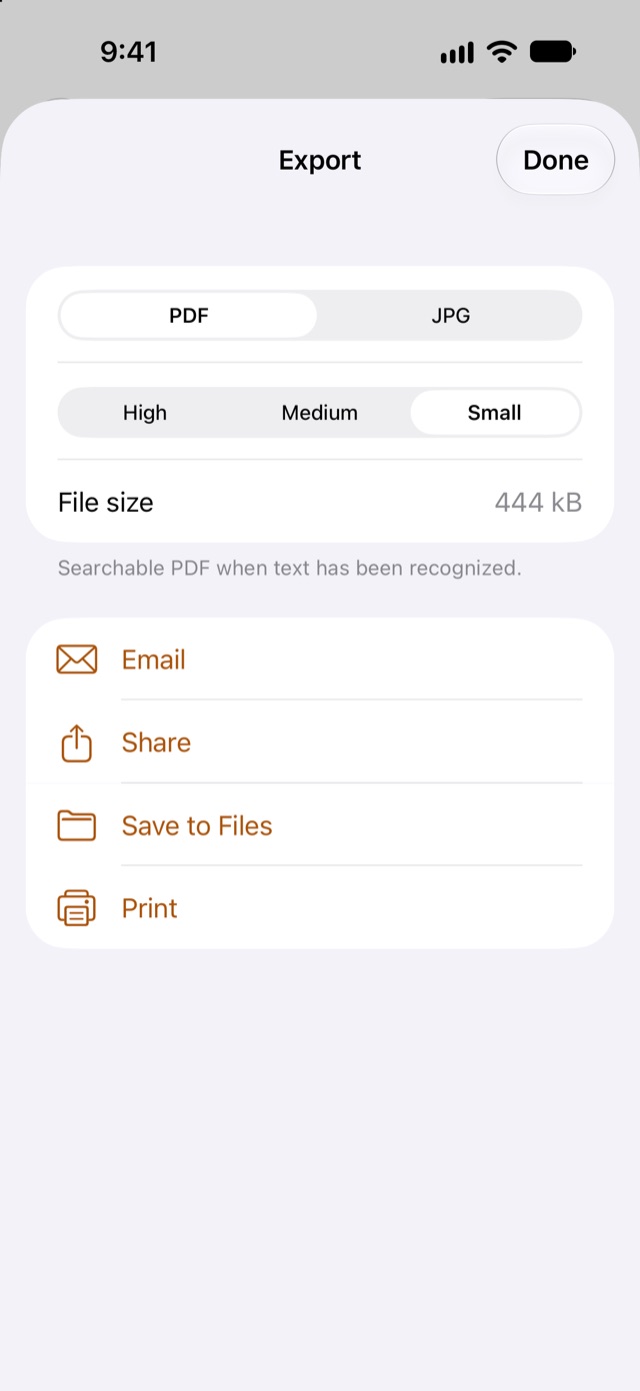
The Export sheet for the sample lease, switched to Small for this picture. High and Small gave the same hidden text (see below).
Export only once "Recognizing text…" has gone. A page still waiting for recognition goes into the PDF as a picture, without text.
Copy the text out (GatoScan Pro)
To take a whole document's text at once, tap More (…), then Copy all text. GatoScan copies the recognized text of all pages, with a blank line between one page and the next, and shows "Text copied". The item works once every page has been recognized. If GatoScan found no text, it says "No text found", with or without Pro.
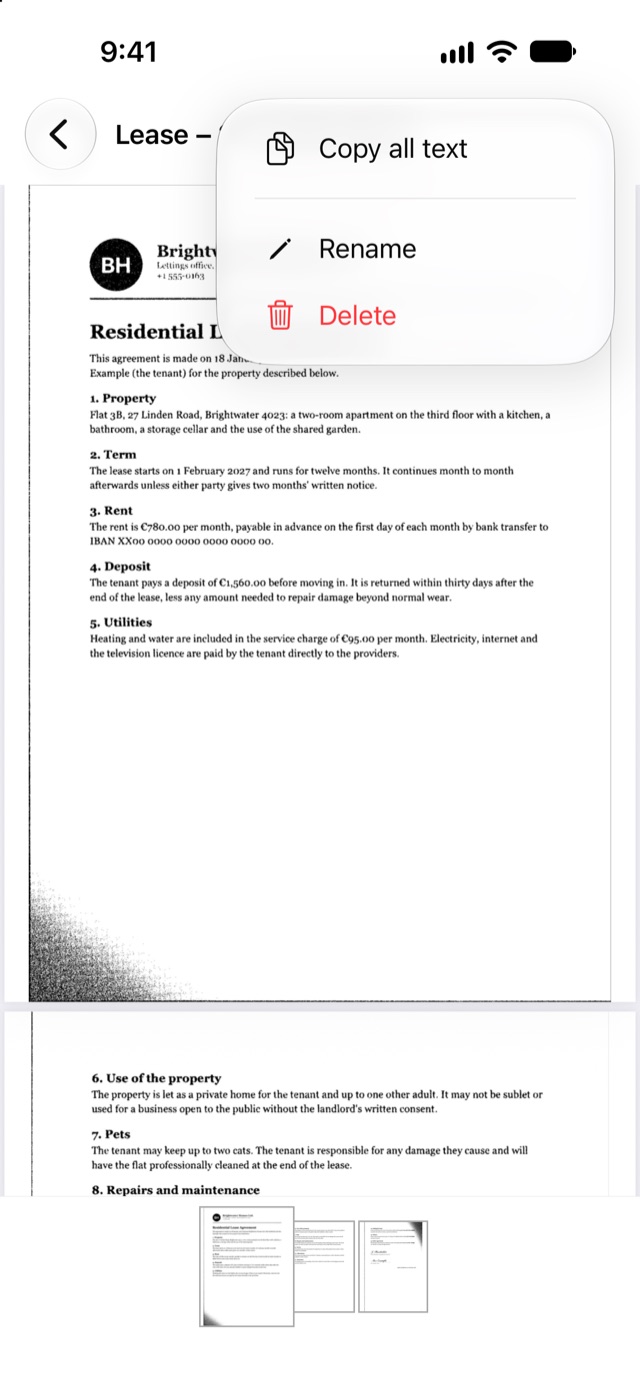
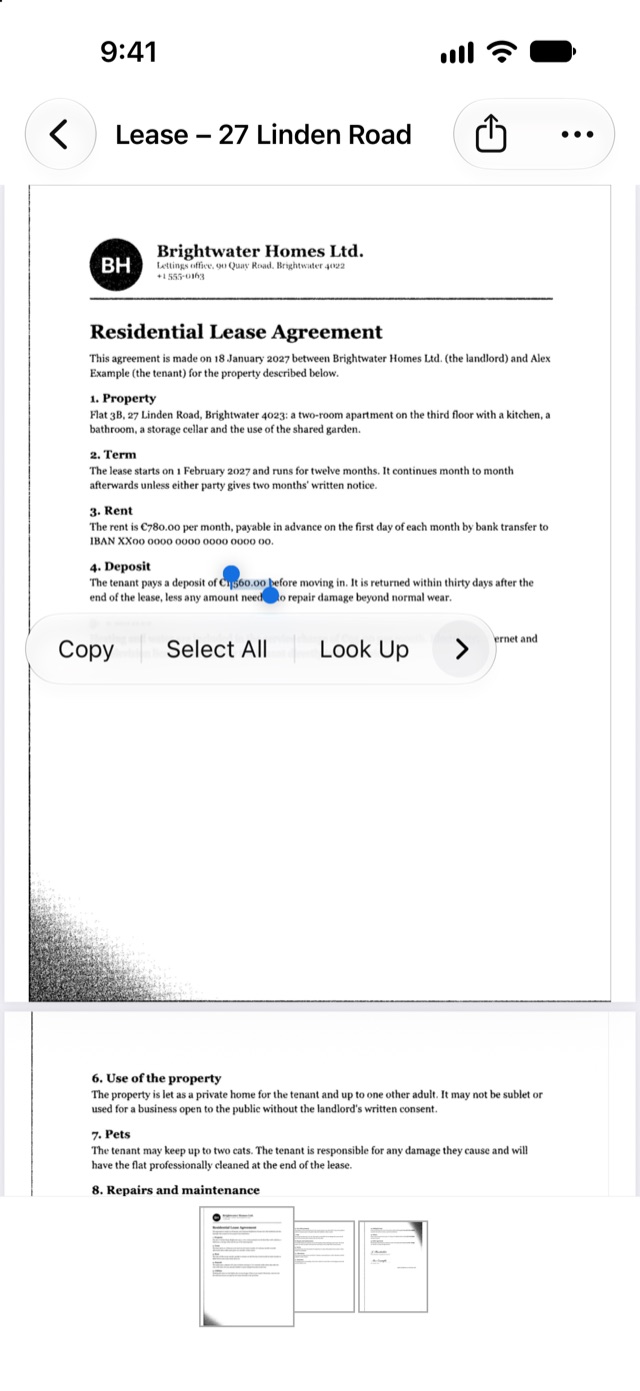
For a few words, touch and hold on the page, then use Copy, Select All or Look Up. Selecting needs GatoScan Pro too: without it, the page doesn't respond to the selection gestures, and Copy all text shows the GatoScan Pro offer first.
What the exported PDF holds
GatoScan writes the recognized text over each page image as invisible text, and sizes each line to the box it was read from, so a selection lines up with the printed words. The page looks just like the scan; the text lies on top of it, unseen. It goes into the PDF at every size, for every page whose text has been recognized.
We exported the sample lease at High and at Small and opened both files on a Mac with Apple's PDFKit. In both, the hidden text came to 2,754 characters, and a search found "deposit" twice on page 1, "cats" on page 2 and "inventory" twice on page 3. It was the same text, word for word, as Copy all text had returned. As a control, page 1 copied as a bare image had no text, so the matches came from GatoScan's layer. That is one sample document, and Medium wasn't measured.
Where text recognition gets it wrong
Text recognition makes mistakes, and a word it has misread can't be found by search. In our sample lease, every heading and every body paragraph came back as printed except one, where an IBAN got two letter Os in place of two zeros. The other errors were in the small print and the signatures: the letterhead line came back with "Brightater" for "Brightwater", a phone number had one digit wrong, and the lines under the signatures had errors. As a result, a search for "Brightwater" found 5 of the 6 places it is printed.
So check the copied text before you rely on it. In our sample, small print, numbers and signatures are where the mistakes were.
One more limit: a JPG from GatoScan has no text layer. It is one image per page and nothing else, so choose PDF when you want the recognized text in the file.
How we checked
Run in the iOS 27.2 Simulator on , with generated sample documents from a test build that already had GatoScan Pro: text recognition starting on the Documents list after the samples loaded, Library search, selecting text in the open lease, More → Copy all text (with the copied text read back), and the Export sheet at PDF High and Small, with both PDFs read back on a Mac with Apple's PDFKit.
Taken from the app's code, not run: the document camera (it needs a real device), the Review screen and Save, the "Purrfect scan!" sheet, the progress bar in the open document, picking up unfinished pages at the next launch, Email, Share, Save to Files and Print, the GatoScan Pro offer and purchase, the email-size warning that takes the place of the footer line for very large files, pages exported without text before they are recognized, and everything without Pro: the offer before Export and Copy all text, no text selection, and "No text found".
Preview: the steps and quotes come from Apple's iPhone User Guide for iOS 27 and the App Store listing; we didn't run them.
Preview or GatoScan for this job
| Preview, as Apple's guide and App Store listing describe it | GatoScan | |
|---|---|---|
| Scan a paper to a PDF | Yes, with Scan Documents | Scan and Save in the app; the PDF file comes from Export (Pro) |
| How the text gets in | Turn on Embed Text when you export a PDF | Recognized by itself after Save, on every page |
| Searching | Find text in an open PDF, with Whole Words and Match Case | Search documents finds scans by title or recognized text, free |
| Starting from an existing PDF | Possible: Apple's export steps begin by opening a PDF or image | Not possible: it imports images only |
| Cost | No charge, according to the App Store listing | Scanning and searching are free; every export and Copy all text need GatoScan Pro |
| Runs on | iOS 26 or later; iPadOS 26 or later on iPad (App Store listing) | iOS 17 or later; iPadOS 17 or later on iPad |
Questions
How do I make a paper scan searchable on iPhone?
With Preview, Apple's guide points to Embed Text when you export the PDF. With GatoScan, the text is recognized after Save, and the PDF you export (Pro) carries it.
Why can't I search or select text in my scan?
A scan saved only as a picture has no text layer, so the file holds no words to find or copy as text. Text recognition is what adds them.
Can I search my scans without exporting them?
In GatoScan, yes, for free, from the Search documents field. Apple's guide also says the Notes app can search "text in scanned documents", within Notes.
Will search find all the words on the page?
Not always: a misread word can't be found, as with "Brightwater" in our sample.
Does the searchable PDF look different?
No. GatoScan's text is invisible, so the page looks like the scan.
Is the PDF still searchable at Small?
In our sample lease, yes: the hidden text was the same at High and at Small.
Is a JPG searchable?
A JPG from GatoScan has no text layer, only the picture of the page. For the recognized text in the file, export a PDF.
Where does GatoScan recognize the text?
Processed on your iPhone. We never see your documents.
Related guides
Sources
- Apple, iPhone User Guide (iOS 27): Scan text and documents in Preview on iPhone, checked .
- Apple, iPhone User Guide (iOS 27): Export or compress PDFs and images in Preview on iPhone, checked .
- Apple, iPhone User Guide (iOS 27): Open and view PDFs and images in Preview on iPhone, checked .
- Apple, iPhone User Guide (iOS 27): Search through your notes on iPhone, checked .
- Apple, App Store: Preview, checked .
Found a mistake or a step that no longer works? Tell us.