 GatoScan
iPhone scan too large to email? Scan it smaller
Quick answer
Apple's Preview app, free on the App Store, can scan a paper to a PDF and, according to Apple's iPhone User Guide, make a PDF smaller on export with "Optimize Images for Screen" or "Save Images as JPEG". In GatoScan, scan the paper, tap Export, choose Medium or Small and read the File size before you send it: scanning is free, but every export needs GatoScan Pro.
With Apple's Preview app
Preview is made by Apple, and the App Store lists it as free. According to that listing, it requires iOS 26 or later on iPhone and iPadOS 26 or later on iPad. Two pages of Apple's iPhone User Guide for iOS 27 cover this job: one on scanning a document to a PDF, one on exporting a PDF with options that compress it. These steps come from those pages.
Already have the PDF? Open it in Preview and start at step 4: Apple's export steps begin with "Open a PDF or image". If your scan is in a note, Apple's Notes page says it's saved as a PDF in the note, but doesn't say how to open it in Preview.
In Preview, tap Scan Documents.
Aim the camera so the page appears on the screen. Apple's guide says the capture happens automatically. For a manual capture, tap Auto so it reads Manual, then tap the Shutter button.
Do the same for each further page. Crop, rotate or adjust the coloring by tapping the thumbnails. When you're done, tap the button that finishes scanning; per Apple's guide, the result is a PDF.
Open the PDF in Preview. Apple's scan page doesn't say where the scan is saved. Tap the button beside the filename and choose Export.
Choose PDF as the format, then turn on one or both of these options. "Optimize Images for Screen" reduces image resolution for screen viewing, and Apple's guide says "This creates a smaller file." "Save Images as JPEG" saves the embedded images as JPEG "for smaller file size".
Tap the button that moves on, then pick where the file goes. To rename it, use the Save As field. Finish with Save.
Apple's guide doesn't say how much smaller the file gets. On a PDF you already have, Preview has the edge: GatoScan can't open a PDF. It imports images only, so to get a smaller file from GatoScan you scan the paper with GatoScan.
With GatoScan: scan it, then export it smaller
GatoScan's Export sheet offers three sizes, High, Medium and Small, and shows the size of the file before you send it. The screenshots come from the iOS 27.2 Simulator with a made-up three-page sample lease, plus a test document we made large on purpose.
-
Scan the paper in GatoScan, which scans with Apple's document camera. Save the scan, then open it.
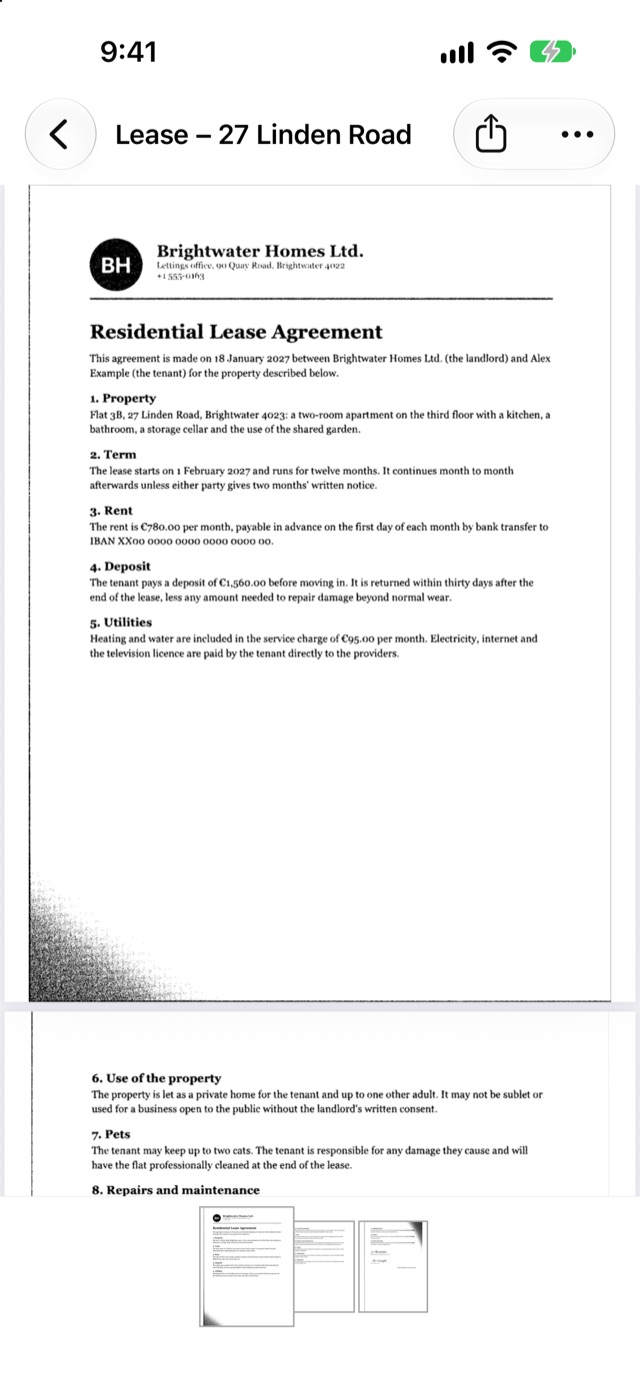
Export is the share icon at the top right of an open document. -
Needs GatoScan Pro: tap Export. Without Pro, the GatoScan Pro offer appears in its place; buy Pro there and the Export sheet follows right away, with no second tap.
-
Look at the File size row. The sheet always opens on PDF and High. GatoScan builds the actual file as soon as the sheet opens, so the size you see is the size of the file you'll send. To send one JPG per page instead, tap JPG; the File size row then shows the total of all the images.
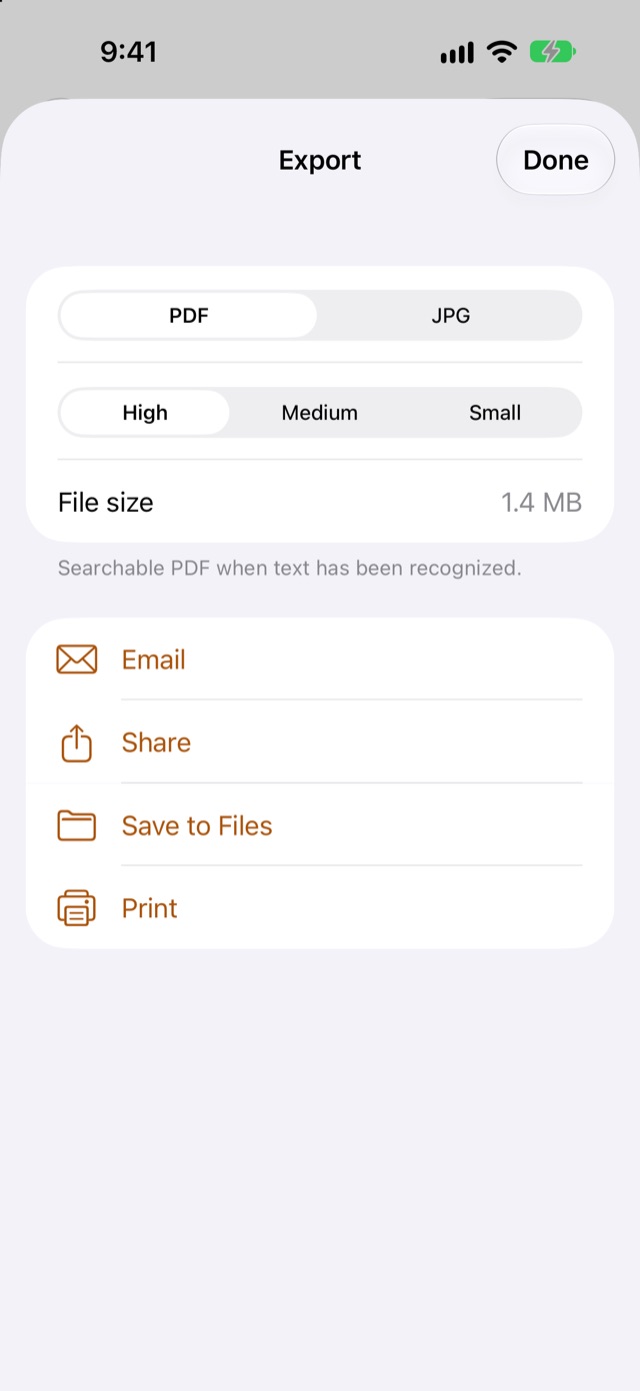
The sample lease at High: the File size row shows 1.4 MB. -
Tap Medium or Small. GatoScan makes the file again at that size, with a spinner in the File size row while it works. Email, Share, Save to Files and Print can't be tapped until the new file is ready.
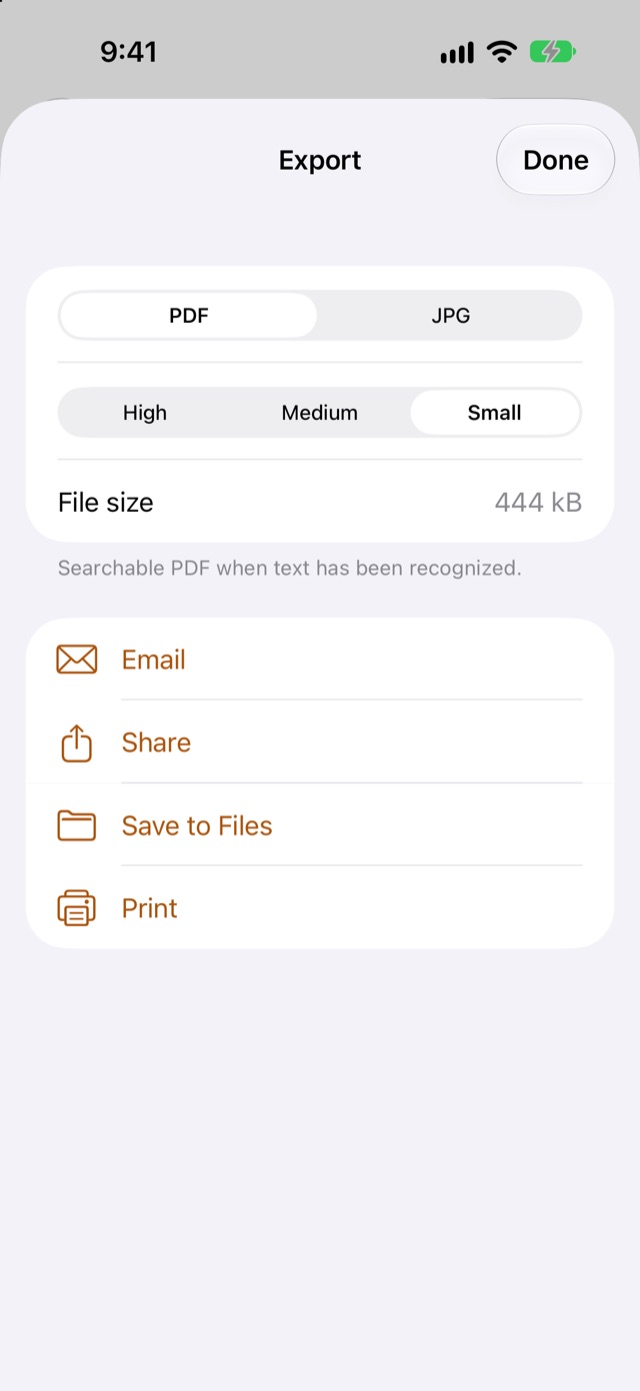
The same lease at Small: 444 kB. -
Tap Email. Mail opens with the file attached and the document's title as the subject. If Mail isn't set up on the device, the iOS share sheet opens instead.
The size you pick applies to that one export. Your saved scan isn't changed, and the sheet is back on High the next time you open it.
When the file is over 15 MB
If the file is larger than 15 MB at High or Medium, the note under the File size row changes to a warning. GatoScan's own wording is: "Most email providers reject files over about 20–25 MB. Choose a smaller size before emailing."
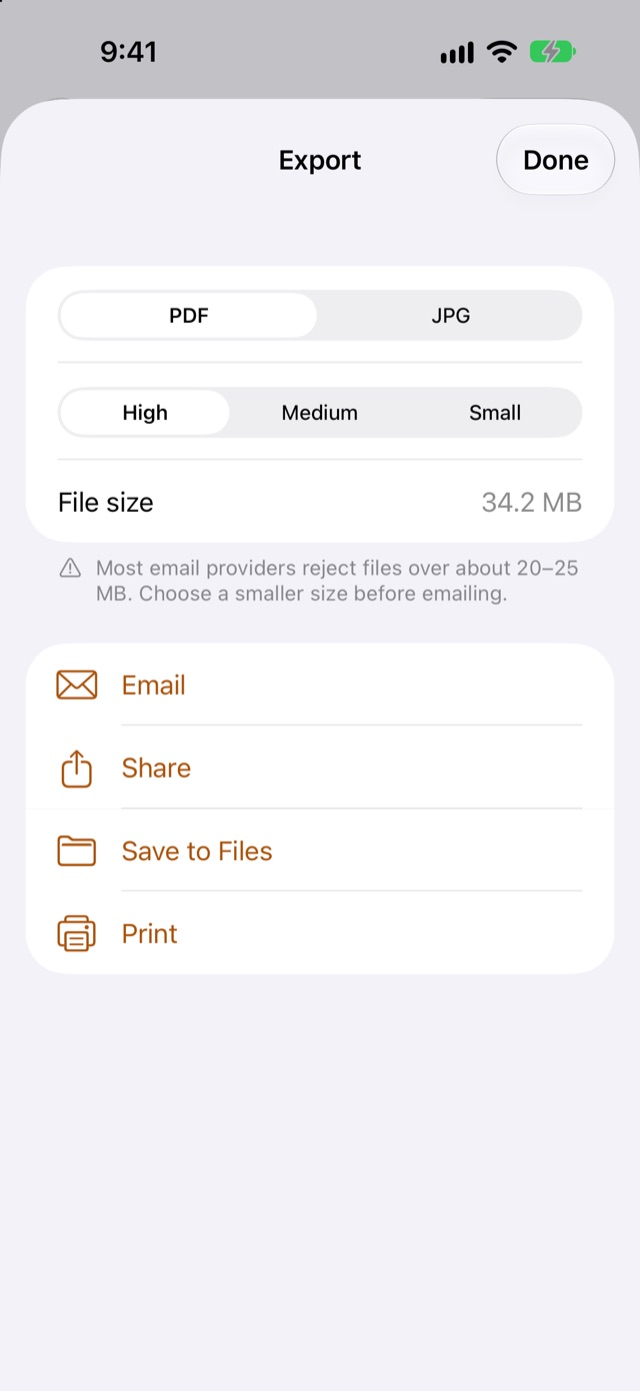
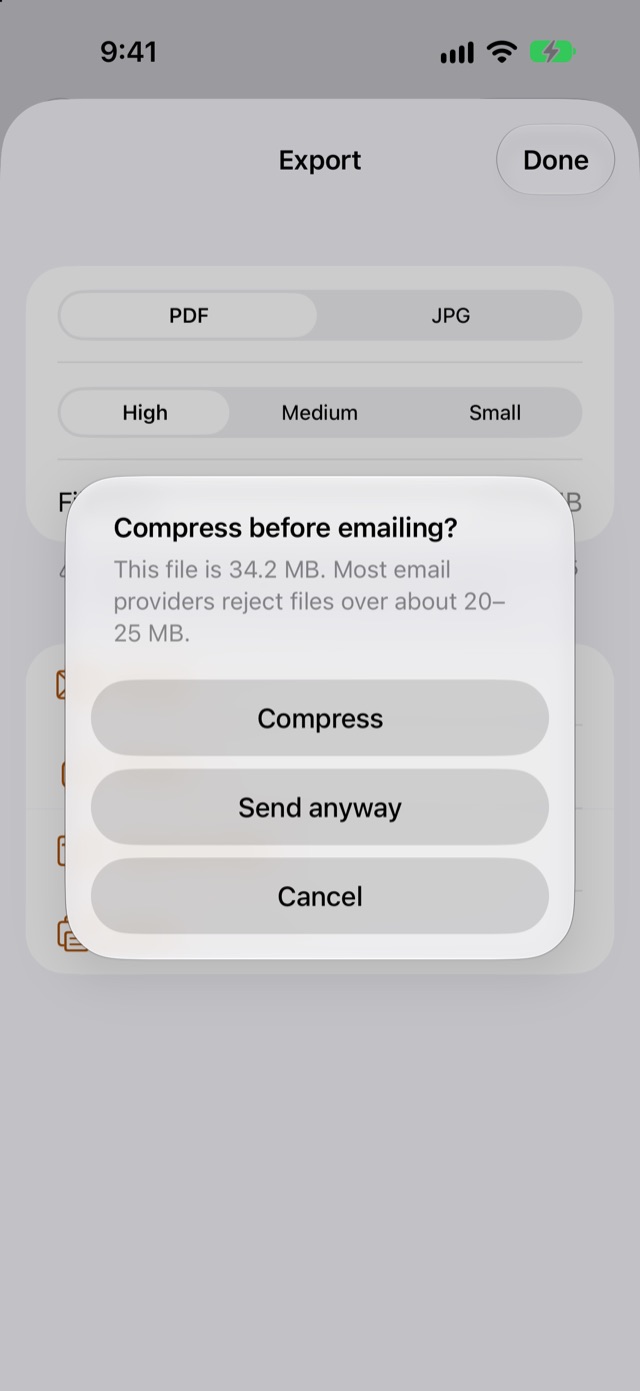
Tap Email with a file like that, and GatoScan asks "Compress before emailing?" with three buttons. Compress switches the size to Small, and email opens by itself once the Small file is ready. Send anyway emails the large file. Cancel closes the alert. At Small, Email never asks. Our Simulator had no Mail account, so after Compress the share sheet opened with the smaller PDF.
What High, Medium and Small mean
GatoScan saves each page at up to 3508 pixels on its longest edge, the long edge of an A4 page at 300 dpi.
- High keeps every page at its saved pixel size.
- Medium limits each page's longest edge to 2339 pixels (A4 at 200 dpi) and compresses the images more.
- Small limits it to 1754 pixels (A4 at 150 dpi) and compresses the most.
None of the sizes makes a page bigger than it was saved. At every size, a PDF keeps any text GatoScan has recognized, so those pages stay searchable.
Here is what our sample lease came to. It has three generated pages, each about 1800 × 2550 pixels.
| Size | JPG (3 images in total) | |
|---|---|---|
| High | 1.4 MB | 1.4 MB |
| Medium | 921 kB | 902 kB |
| Small | 444 kB | 424 kB |
These are generated sample pages, not a real paper. A real scan's size depends on the paper, the camera and the number of pages, so go by the File size row for your own document.
If it's still too big
Small is the smallest file GatoScan makes. If even that is too big, Apple's pages describe Mail Drop, in Apple's Mail app. After GatoScan's Save to Files, this route follows only what Apple's pages describe:
Needs GatoScan Pro: in GatoScan's Export sheet, tap Save to Files and pick a folder.
In the Mail app, start a new message, tap in it where the attachment should go, then tap the button above the keyboard. Apple's guide says to tap Attach File, then locate the document in Files.
Apple's Mail guide says that if the file exceeds the maximum size allowed by your email account, you follow the onscreen instructions to send it with Mail Drop.
Apple's support article on Mail Drop limits says Mail Drop sends large files through iCloud, with attachments of up to 5 GB. According to that article, when a message is larger than your Internet service provider's limit, Mail asks you to send the attachments with Mail Drop, and recipients then have 30 days to download them. The same article warns that the recipient's email app might have a smaller limit that stops the attachment from being delivered.
Preview and GatoScan compared
| Preview | GatoScan | |
|---|---|---|
| Scans a paper | Yes, to a PDF, per Apple's guide | Yes, with Apple's document camera |
| Ways to make the file smaller | "Optimize Images for Screen" and "Save Images as JPEG" for a PDF, and a Size slider for JPEG or HEIC, per Apple's guide | High, Medium or Small, for PDF or JPG |
| Shows the file size before sending | Not stated in Apple's guide | Yes, in the File size row |
| Works on a PDF you already have | Yes: the export steps start from "Open a PDF or image", per Apple's guide | No: GatoScan imports images only |
| Warning before emailing a large file | Not stated in Apple's guide | "Compress before emailing?" above 15 MB, at High or Medium |
| Runs on | iPhone with iOS 26 or later, iPad with iPadOS 26 or later, per the App Store listing | iPhone with iOS 17 or later, iPad with iPadOS 17 or later |
| What you pay | Nothing: the App Store lists it as free | Scanning costs nothing; exporting in any format needs GatoScan Pro |
Questions
How do I make a scan smaller on iPhone?
In Preview, Apple's guide says to export the PDF with "Optimize Images for Screen" or "Save Images as JPEG" turned on. In GatoScan, export at Medium or Small, which needs GatoScan Pro.
Will the smaller file still be readable?
In GatoScan, Small caps each page's longest edge at 1754 pixels, the long edge of an A4 page at 150 dpi. If fine detail matters, pick Medium (2339 pixels) or High, which keeps each page at its saved size. Either way, a PDF stays searchable when GatoScan has recognized its text.
What if even the smallest file is too big to email?
Save it from GatoScan with Save to Files (needs GatoScan Pro) and attach it in Apple's Mail app. Apple's guide says that if the file exceeds your email account's limit, Mail's onscreen instructions let you send it with Mail Drop.
Can an app shrink a PDF I already made?
Apple's guide for Preview starts its export steps from "Open a PDF or image", and its Export screen can compress a PDF. GatoScan can't: it imports images only, not PDFs. Apple's guide says a scan made in the Notes app is saved as a PDF in the note, so GatoScan can't shrink that one either. To get a smaller file from GatoScan, scan the paper with GatoScan.
Does choosing Small change my saved scan?
No: the size applies only to the file being exported.
Related guides
- Scan a document under 2 MB on iPhone for a visa upload
- Save a scan as JPG instead of PDF on iPhone
- GatoScan: iPhone document scanner, no account needed
Sources
- Apple, iPhone User Guide (iOS 27): Scan text and documents in Preview on iPhone, checked .
- Apple, iPhone User Guide (iOS 27): Export or compress PDFs and images in Preview on iPhone, checked .
- Apple, App Store: Preview, checked .
- Apple, iPhone User Guide (iOS 27): Add email attachments in Mail on iPhone, checked .
- Apple Support: Mail Drop limits, checked .
- Apple, iPhone User Guide (iOS 27): Scan text and documents in Notes using the iPhone camera, checked .
Found a mistake or a step that no longer works? Tell us.