 GatoScan
Scan a document under 2 MB on iPhone for a visa upload
Quick answer
Apple's iPhone User Guide says Apple's Preview app (listed as free on the App Store) turns a paper into a PDF and can export it smaller with "Optimize Images for Screen" or "Save Images as JPEG", but the guide doesn't say how much smaller, so it can't tell you whether the file will be under 2 MB. With GatoScan, you scan the paper, export it as a PDF at Small and read the File size row: 1.9 MB or less means under 2 MB however your portal counts a megabyte; scanning costs nothing, but any export needs GatoScan Pro.
This guide is for a visa or immigration upload page that sets a size limit for each file. It quotes no portal's limit: read yours on your portal's upload page. The steps below assume that page asks for files under 2 MB.
The Apple way: Preview
Preview is an Apple app. Its App Store listing says it is free and requires iOS 26 or later. Apple's iPhone User Guide for iOS 27 has one page on scanning a document in Preview and one on exporting or compressing a PDF there. The steps below are taken from those two pages; we did not run them.
Open Preview and tap Scan Documents.
Hold the iPhone so the paper shows on the screen. According to Apple's guide, the page is captured on its own; to take it yourself, tap Auto, which turns into Manual, and then the Shutter button.
Repeat for every other page. Tapping a thumbnail lets you crop, rotate or change the coloring. Then tap the button that ends the scan (Apple's text shows only an icon for it). The guide says scanning creates a PDF.
With the PDF open in Preview, tap the icon button next to the file's name, then Export. (Apple's scanning page doesn't mention where the new PDF is kept.)
Select PDF as the format and turn on one or both compression options. Apple's guide says "Optimize Images for Screen" lowers image resolution for screen viewing ("This creates a smaller file."), and "Save Images as JPEG" turns the images inside the PDF into JPEG "for smaller file size".
Tap the button that Apple's page shows only as an icon, choose a location, rename the file in the Save As field if you like, and tap Save.
What Apple's page leaves out: it doesn't say how much smaller the PDF becomes, or whether the Export screen shows the file's size. From the page alone, you can't tell whether the result fits under your portal's limit.
Where Preview is the better tool: a document that is already a PDF. Apple's export steps have you "Open a PDF or image" in Preview, and the App Store listing says Preview reaches the PDFs saved in the Files app. GatoScan can't open a PDF at all, because it imports images only. For that case, start with Preview.
With GatoScan: export at Small and read the size
GatoScan makes the export file first and shows its size, so you can compare it with your portal's limit before the file goes anywhere. Steps 3 to 5 were run in the iOS 27.2 Simulator with two generated sample documents carrying made-up names, a one-page letter and a three-page lease. GatoScan's document camera runs only on a real device and our test app already had Pro, so steps 1, 2 and 6 follow the app's code, not a test run.
-
On the Documents screen, tap Scan (Scan document while the list is empty) and capture the paper with Apple's document camera. On the Review screen, tap Save. If a "Purrfect scan!" sheet appears, tap Done (its Share PDF button opens the same Export sheet as step 2), then tap the new document in the Documents list to open it.
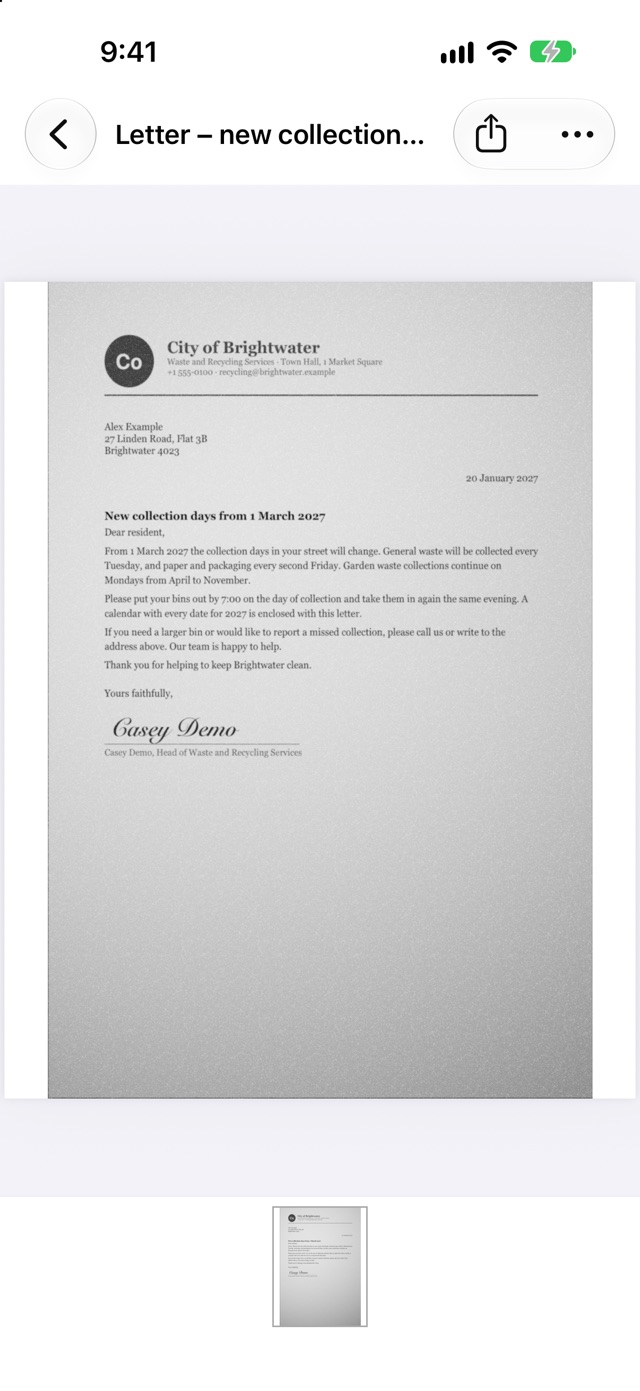
The sample letter, open in GatoScan. Export is the share-icon button, top right. -
Needs GatoScan Pro: tap Export. If you don't have Pro, the GatoScan Pro offer comes up first, and after you buy, the Export sheet opens without another tap.
-
Leave the format on PDF. The sheet opens on PDF and High every time. Before showing a number, GatoScan writes the actual file, so the File size row gives the size of the file you will upload.
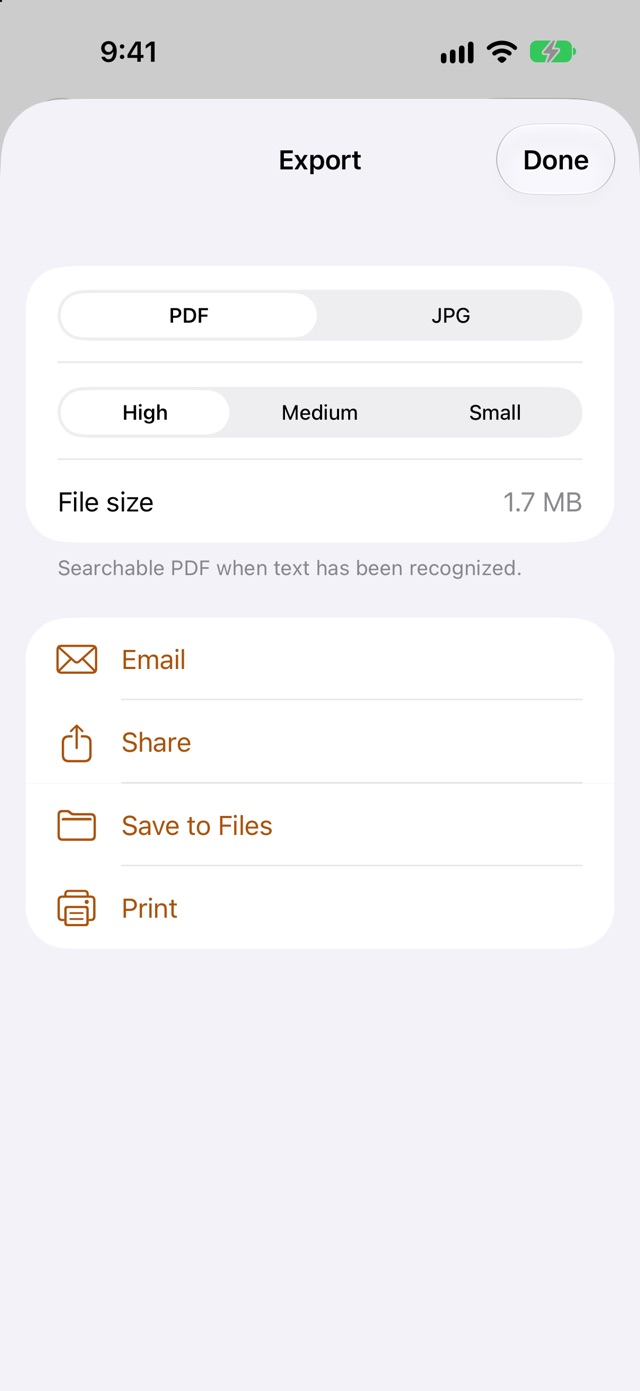
The one-page sample letter at High: 1.7 MB. -
Tap Small. GatoScan writes the file again at that level. While it works, the File size row shows a spinner, and Email, Share, Save to Files and Print stay disabled until the new file exists.
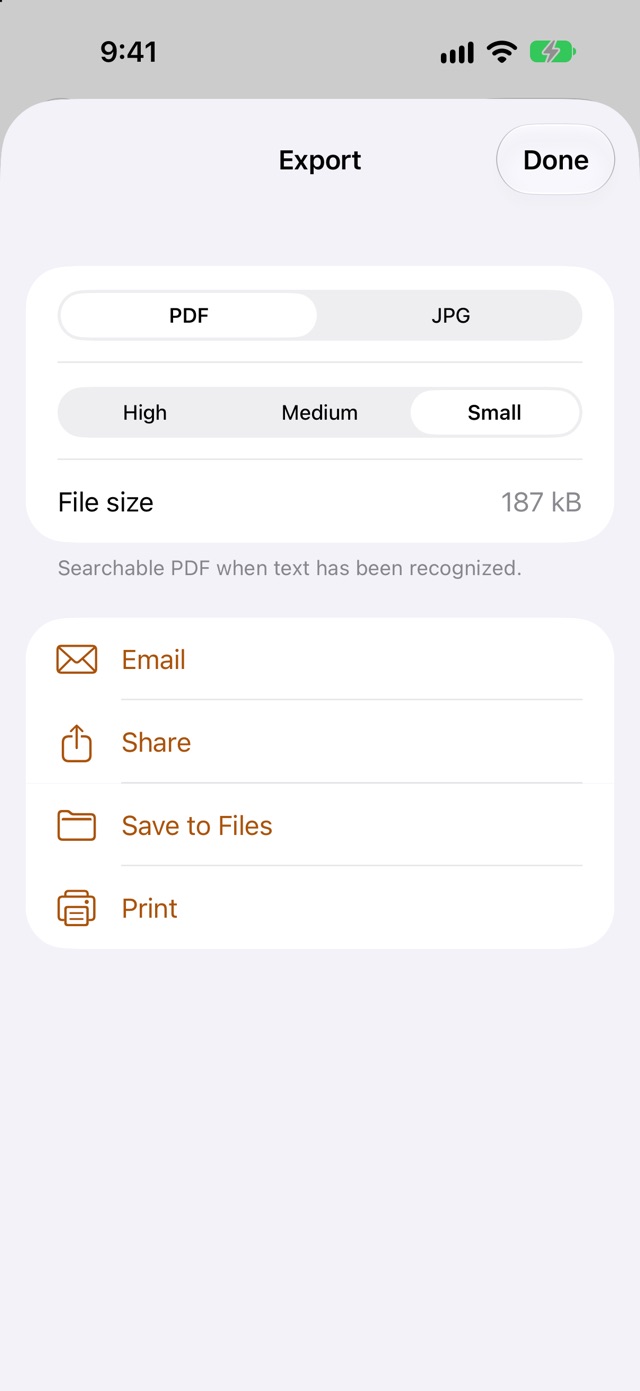
The same letter at Small: 187 kB. 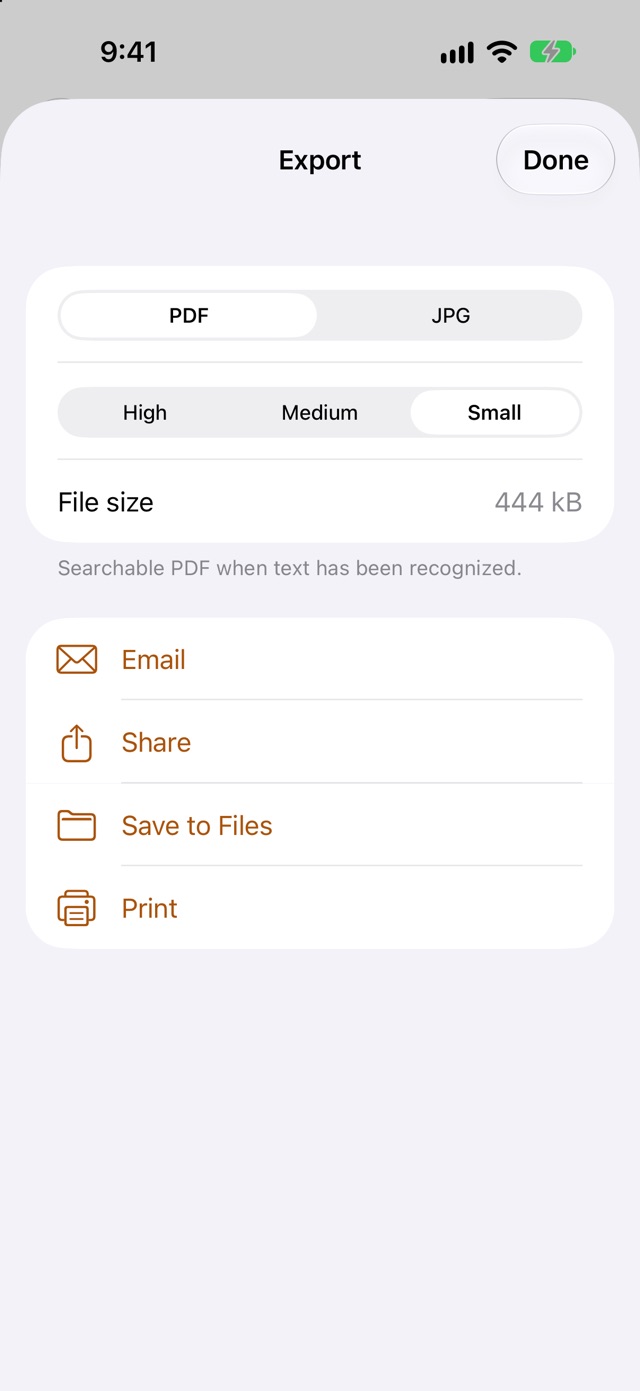
The three-page sample lease at Small: 444 kB for the whole PDF. -
Compare the File size row with the limit on your upload page. The row rounds: 1.9 MB or less is under 2,000,000 bytes, but a row reading 2 MB can be slightly over. If High or Medium already reads 1.9 MB or less, you can keep that level for more detail. If Small reads 2 MB or more, see "If Small is still too big" below.
-
Tap Save to Files and choose where to keep it, or tap Share to hand the file to another app. Either way you get the PDF exactly as made, at the size shown. Then, on your portal's upload page, choose that file.
The file is named after the document's title, with characters such as / or : turned into a hyphen. For a different name, rename the document before exporting, under More → Rename; renaming is free.
Small applies to this one export only. Your saved scan is left as it was, and the next time you open the sheet it starts on High again.
What our sample documents came to
We exported both samples as PDFs at each level and read the byte counts of the files GatoScan wrote. The File size row showed the same values, rounded.
| Sample | High | Medium | Small |
|---|---|---|---|
| Letter, 1 page | 1.7 MB (1,694,439 bytes) | 633 kB (633,172 bytes) | 187 kB (186,516 bytes) |
| Lease, 3 pages | 1.4 MB (1,404,814 bytes) | 921 kB (921,303 bytes) | 444 kB (443,532 bytes) |
Be careful with these numbers. Both documents are sample pages generated by a test build of GatoScan, not scans of real paper, and with them every level came in under 2 MB, High included. So they don't show that you need Small. Note also that at High the one-page letter was the larger file, while at Medium and Small the three-page lease was.
How big a real scan comes out depends on the paper, the camera and how many pages it has. Small doesn't aim at a size in megabytes: it limits each page's pixel size and compresses the page images harder, so a larger or busier document can still be over a limit at Small. For your own document, trust the File size row.
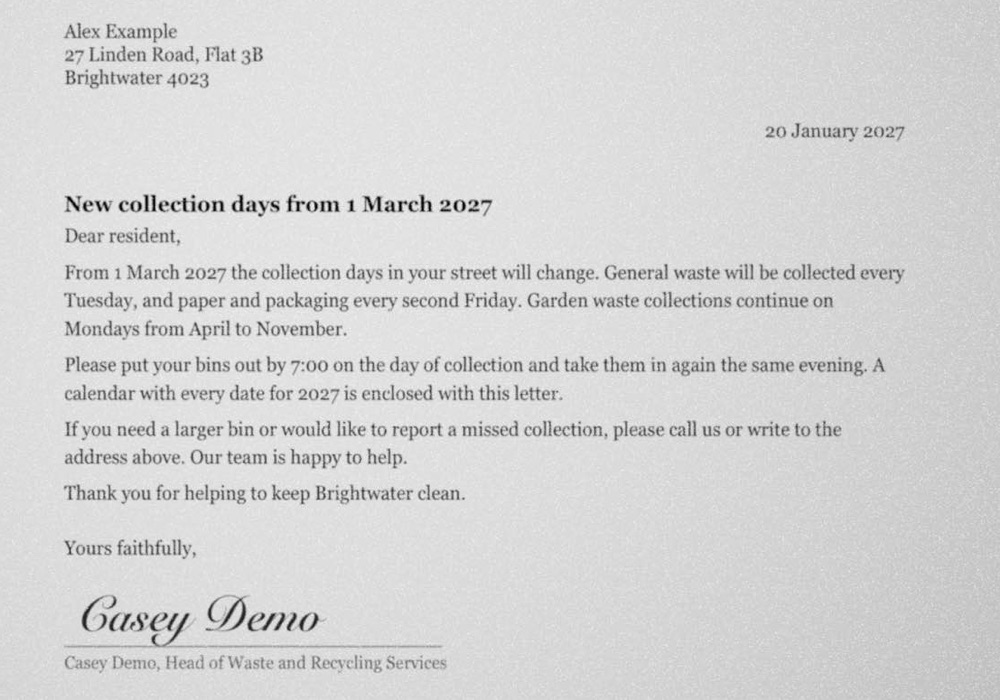
On readability: in our sample letter's Small PDF the text is still clear, as the crop below shows, and both Small PDFs kept their layer of recognized text. GatoScan keeps recognized text in the PDF at every level.
How GatoScan counts a megabyte
The File size row uses decimal units: 1 kB is 1,000 bytes and 1 MB is 1,000,000 bytes, which is why 186,516 bytes appears as 187 kB. It also rounds. A file of 1,949,999 bytes shows as 1.9 MB, but every size from 1,950,000 bytes to at least 2,050,000 bytes shows as 2 MB. (Where a comma is the decimal mark, the row reads 1,9 MB.)
So a row reading 1.9 MB or less means the file is under 2,000,000 bytes, and so also under 2 × 1,048,576 = 2,097,152 bytes, whichever of the two your portal means by 2 MB. A row reading 2 MB doesn't tell you which side of 2,000,000 bytes the file is on.
If Small is still too big
GatoScan has nothing below Small, so it can't take the file any further. Apple's guide describes two export options in Preview that make a PDF you open there smaller, "Optimize Images for Screen" and "Save Images as JPEG". Preview's App Store listing says it can access the PDFs saved in the Files app, so our reading is that it can open a PDF you saved there from GatoScan; we haven't tried it. Apple's page gives no figure for the saving and doesn't say where to see the file's size, and we haven't measured it.
Preview and GatoScan side by side
| Preview, per Apple's guide and App Store listing | GatoScan | |
|---|---|---|
| Shows the file's size before you upload | Not stated on Apple's export page | Yes: the File size row, read from the file it has made |
| How you choose a smaller file | Turn on "Optimize Images for Screen", "Save Images as JPEG", or both | Pick Small, or Medium, in the Export sheet |
| Opens an existing PDF | Yes: its export steps say "Open a PDF or image" | No: it imports images only |
| Cost | Free, per the App Store listing | Scanning is free; every export needs GatoScan Pro |
| Devices | iOS 26 or later on iPhone, iPadOS 26 or later on iPad | iOS 17 or later on iPhone, iPadOS 17 or later on iPad |
Questions
Does 2 MB mean 2,000,000 or 2,097,152 bytes?
This guide can't tell you which one your portal means. GatoScan's File size row counts 1 MB as 1,000,000 bytes, so a file it shows at 1.9 MB or less is under both numbers.
The File size row reads 2 MB. Is that under the limit?
Not for certain. GatoScan's rounding shows every size from 1,950,000 to at least 2,050,000 bytes as 2 MB, so the file can be slightly over 2,000,000 bytes. Look for 1.9 MB or less.
Will the text still be readable at Small?
In our sample letter's Small PDF the text is clear (see the screenshot above), but that is one sample, not a promise for every paper. Medium keeps more detail than Small (see what High, Medium and Small mean), so if fine print matters, try Medium and check that the File size row still fits your limit.
What if Small is still over the limit?
Apple's guide describes Preview's two export options for making a PDF smaller, but doesn't say by how much, and we haven't measured them. In GatoScan, Small is the lowest level, so GatoScan can't go further. Small sets image size and quality, not a target size, which is why a large document can still be over the limit there.
Can I upload a JPG instead?
Whether your portal accepts JPG is the portal's rule, so check its upload page. GatoScan can export JPG at the same three levels, as one image per page, and File size adds up all the images.
Related guides
- iPhone scan too large to email? Scan it smaller
- Save a scan as JPG instead of PDF on iPhone
- GatoScan: iPhone document scanner, no account needed
Sources
- Apple, iPhone User Guide (iOS 27): Scan text and documents in Preview on iPhone, checked .
- Apple, iPhone User Guide (iOS 27): Export or compress PDFs and images in Preview on iPhone, checked .
- Apple, App Store: Preview, checked .
Found a mistake or a step that no longer works? Tell us.